Do you use the Feeder extension? Its popup now does a lot more than show your posts. You can add feeds, edit them and change your settings right there, without opening a new tab. Doing more from the popup has been one of your most requested features for a long time, so that's what this update is about.
One + for everything you add
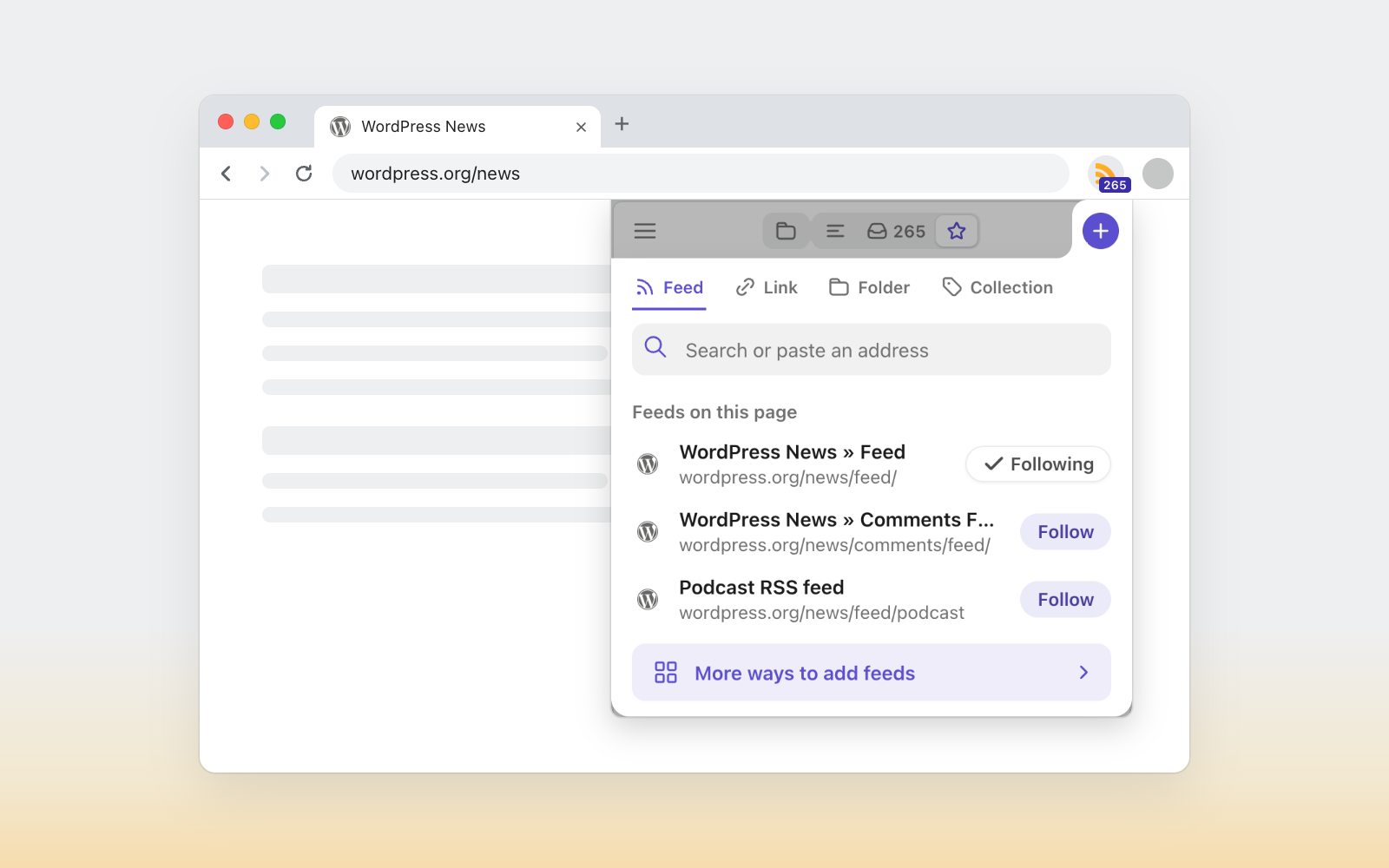
The + opens one sheet for everything you add. Follow a feed on the page you're reading, search for a new one, save the page as a link, or make a folder or a collection.
Edit feeds in the popup
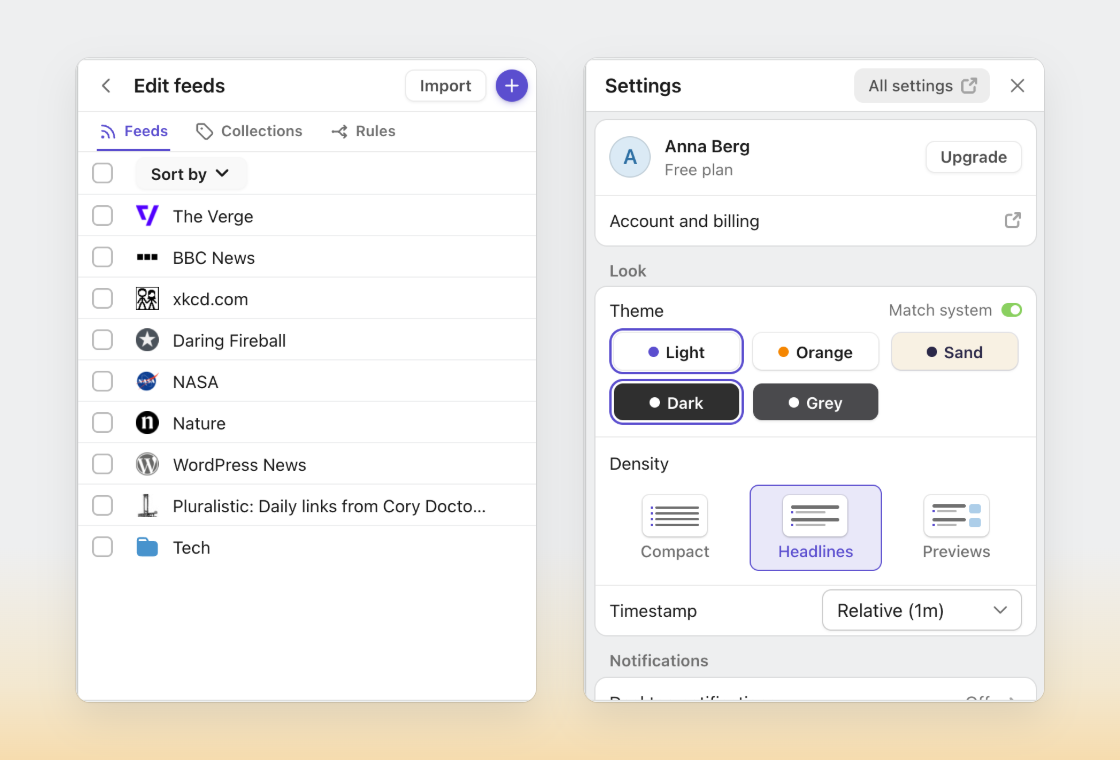
Pick Edit feeds in the menu and your posts slide down to make room. Rename and move feeds, unfollow the ones you're done with, change how often they update, and look after your collections and rules. When you go back, your posts slide up again.
Settings on one screen
We looked at which settings people change from the popup and put those on one short screen: the theme, how dense the list is, desktop notifications for each feed and the unread count on the Feeder icon. The rest of Settings is one click away on feeder.co.
Start without an account
You can follow feeds in the popup before you have an account. When you sign up from the popup, the feeds you follow come with you.
A calmer place to read
We also went over the reading itself, for everyone who uses the popup. Bars and rows share one height, the search sits next to sort, and the menu holds the rest, so your posts get more of the space.
The new popup comes with the next version of the extension, and your browser installs it on its own.
This is a big update, and we'd love to hear how it works for you. What would you like the popup to do next? Tell us at [email protected].